How to manage users in Lace
Last updated: July 6, 2026
User management in Lace allows full control over your team's agent and portal access directly within Lace.
Who can manage users?
Only users with the User Management permission have access to the User Management function. Upon initial launch with Lace, there will be at least one user on the account appointed during the onboarding process.
If you would like to make changes to who can manage users, please have the current user manager do this from the app or send a request here.
How to add users
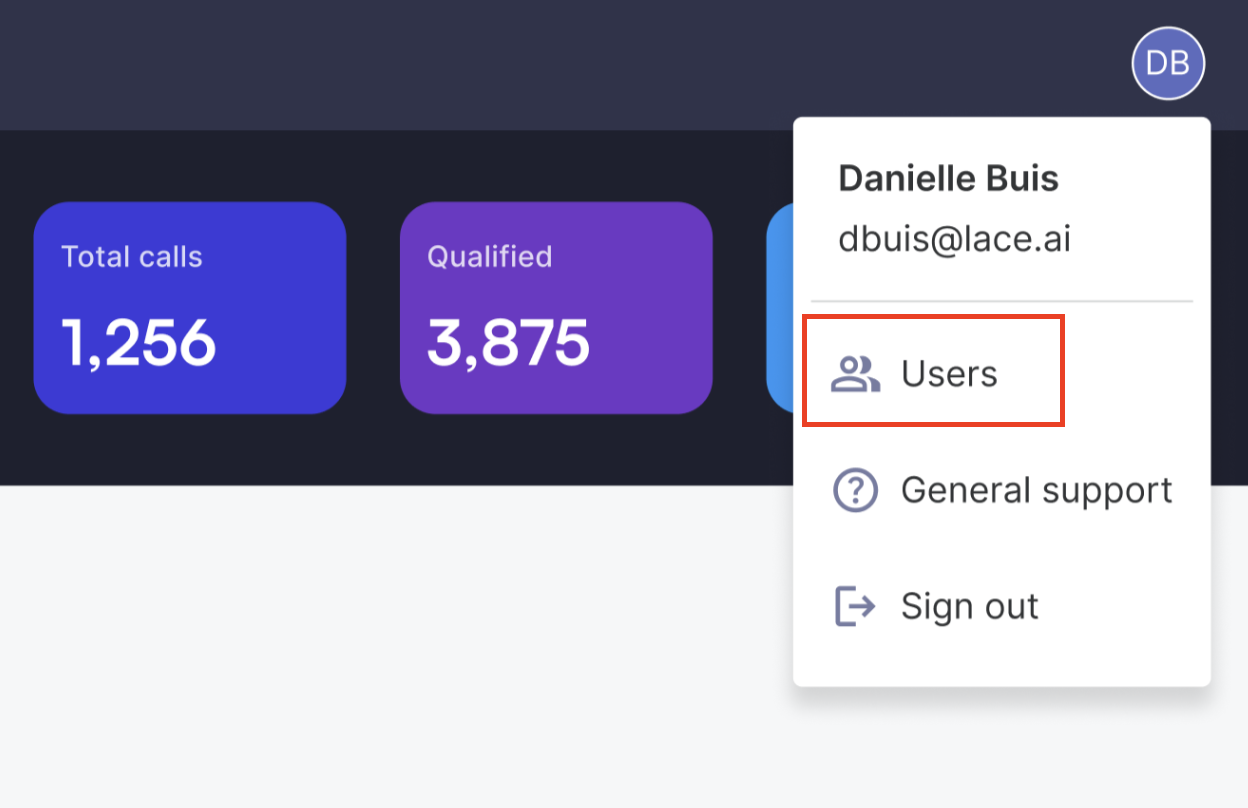
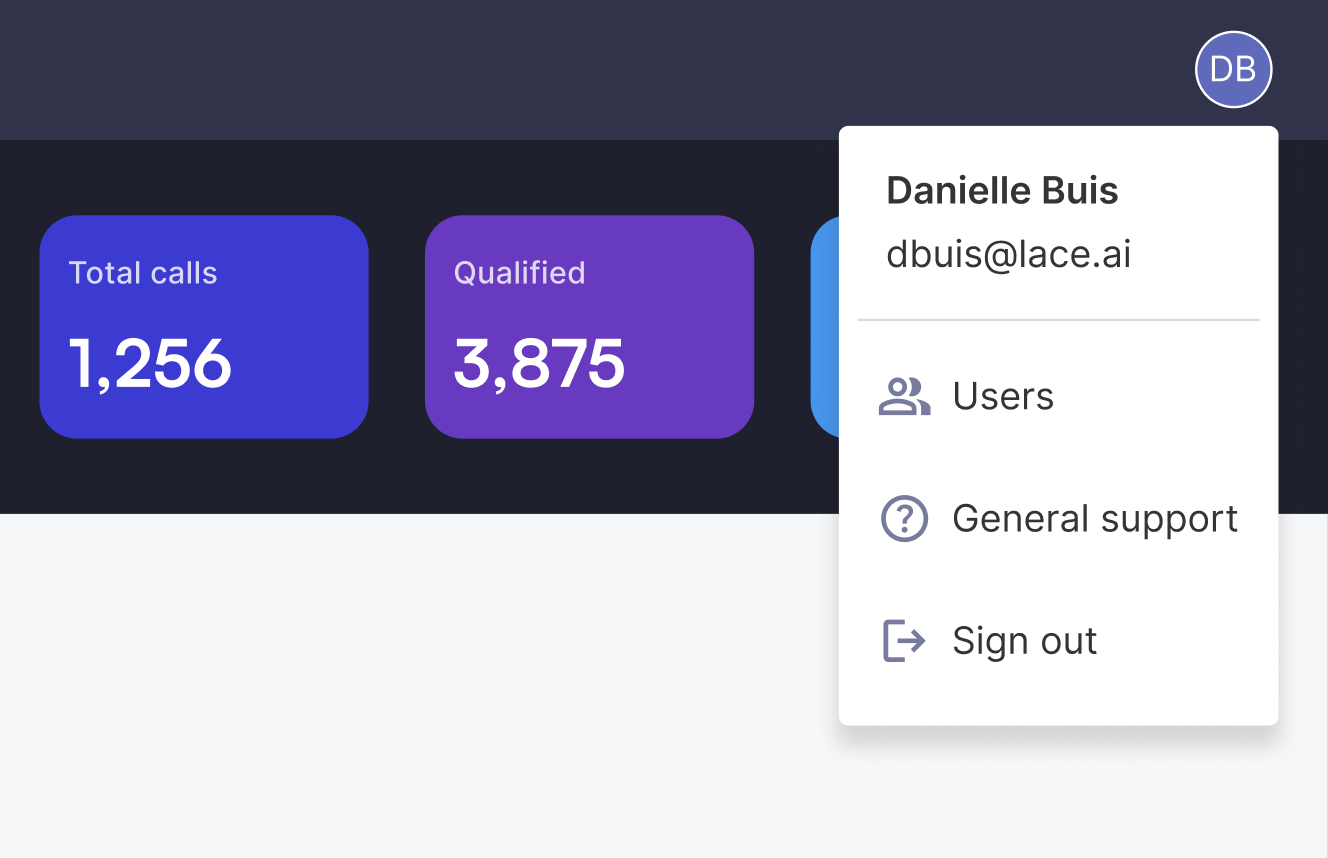
Click the Initials icon in the top right of the Lace portal.
Select Users from the drop down menu.
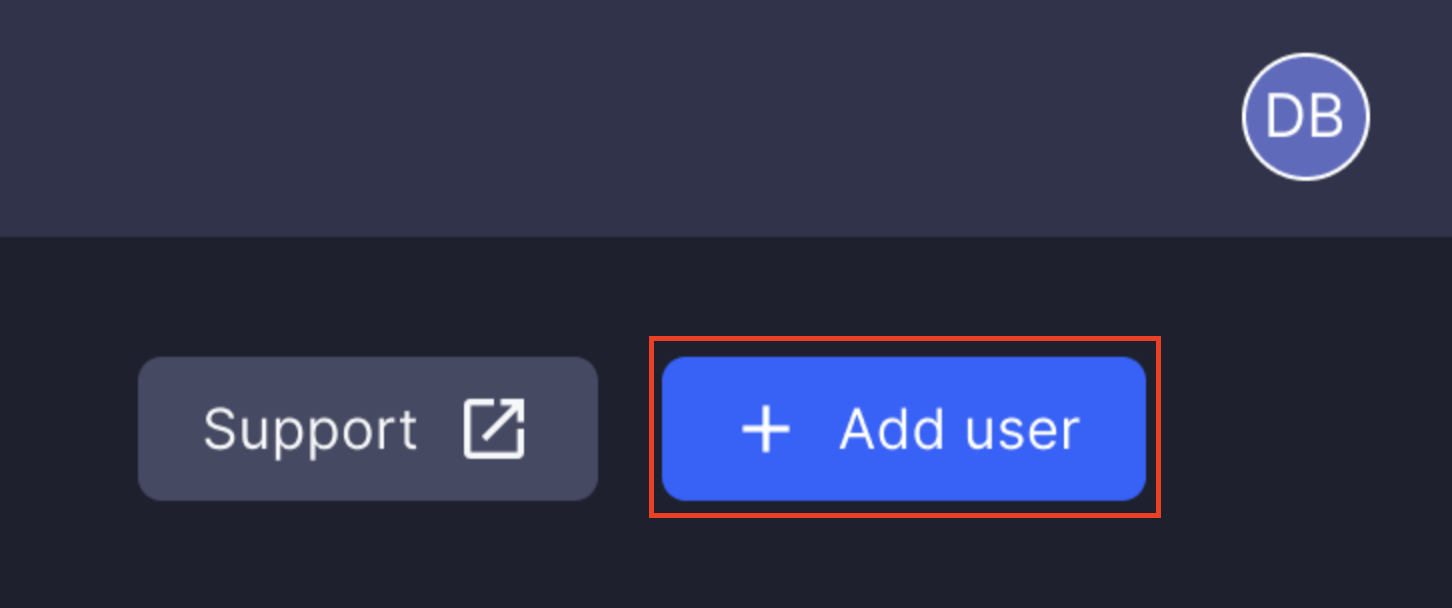
Click the Add user button
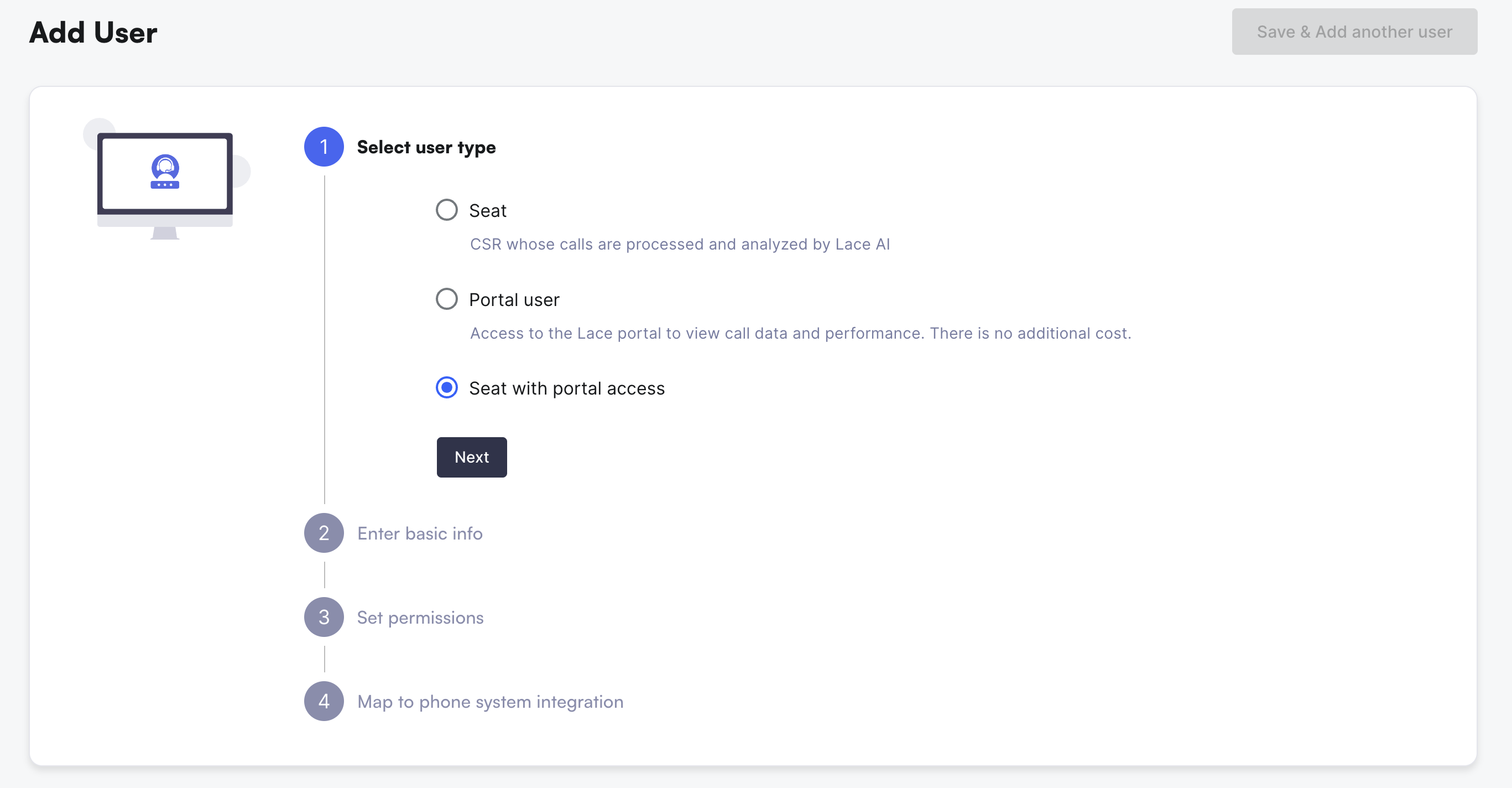
Select the type of user you want to add:
Seat: CSR or agent whose calls are processed and analyzed by Lace AI.
*These seats are billed upon your next billing cycle.
Portal user: Access to the Lace portal to view call data and performance. There is no additional cost for these seats.
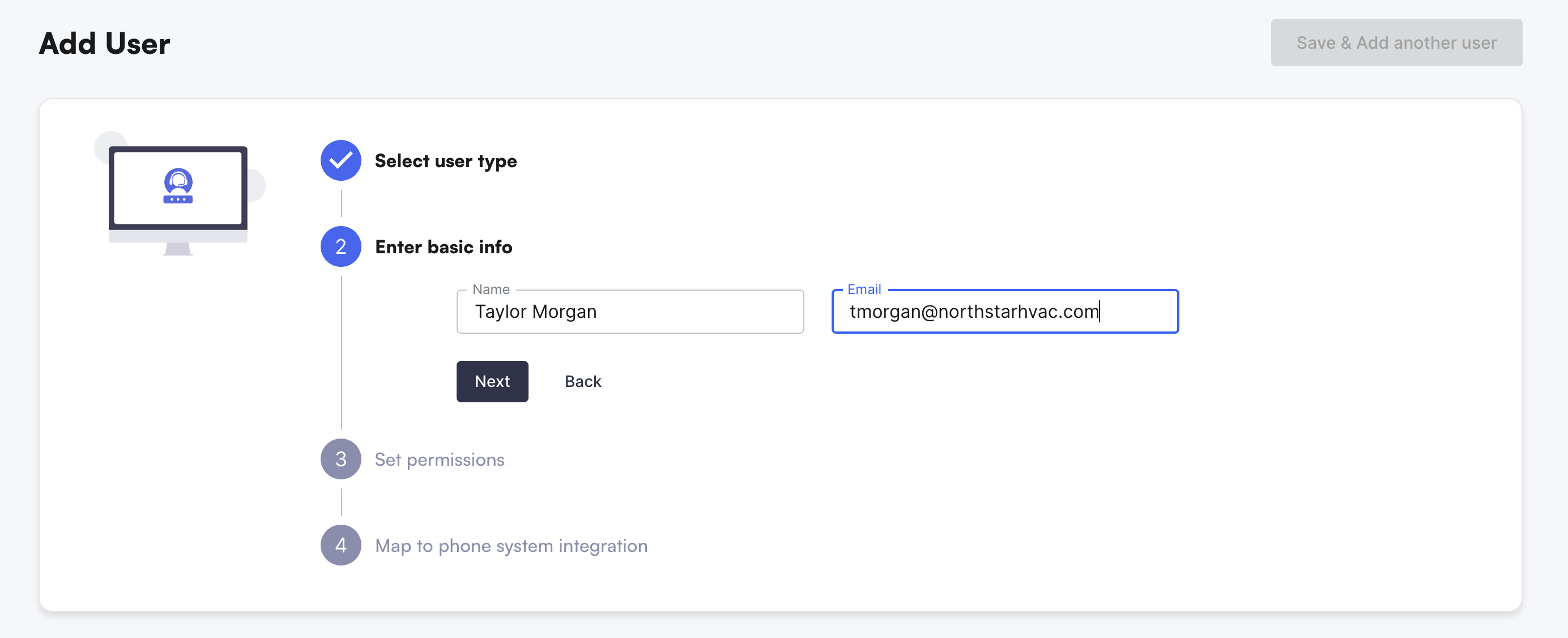
Seat with portal access: add a call syncing users and extend portal access at the same time.Enter basic information about the user
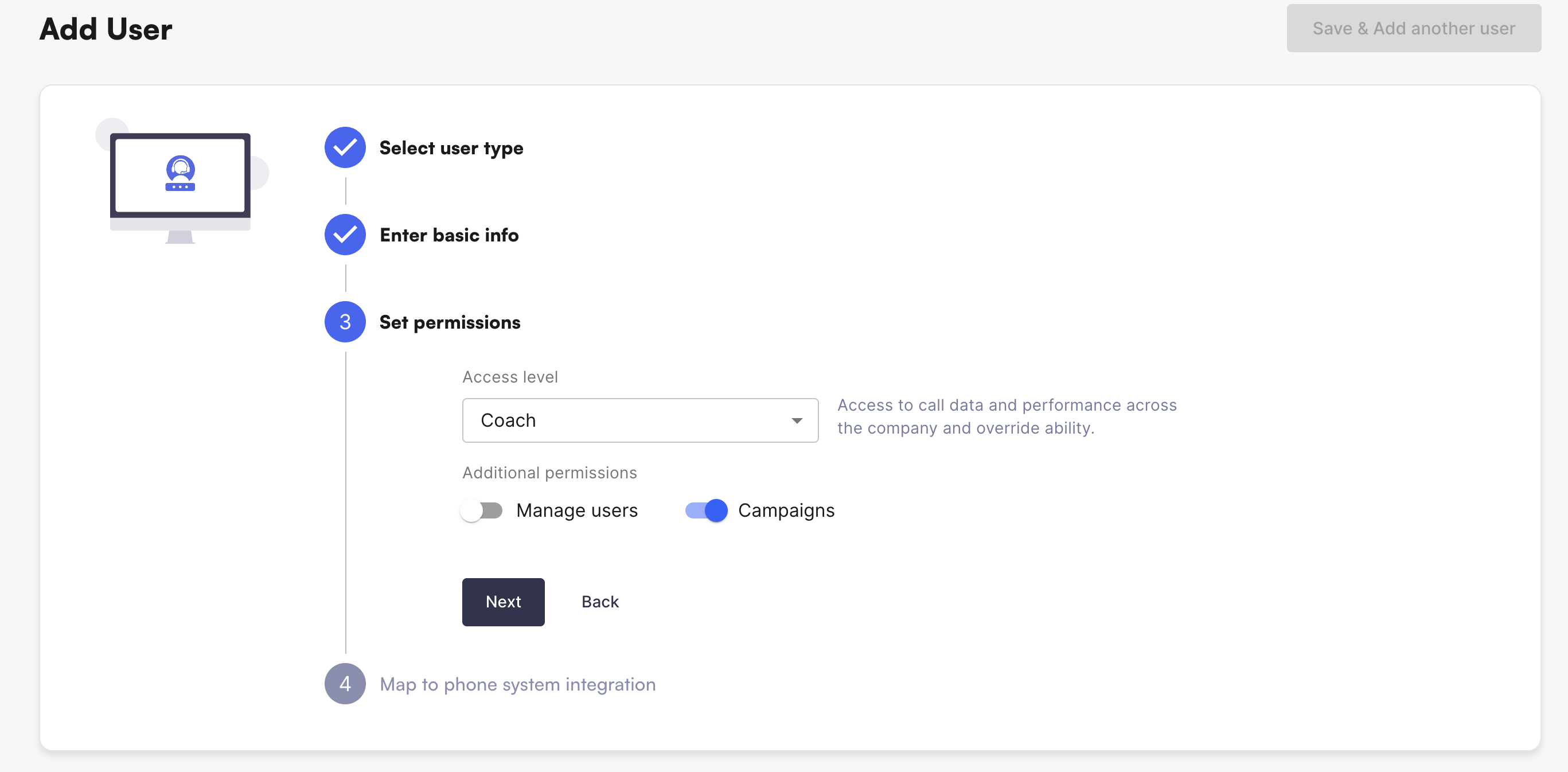
Set portal permissions
Access level:
Viewer: Read-only access to call data and performance across the company
*Recommended for CSRs and agentsCoach: Access to call data and performance across the company and override ability
*Recommended for Call Center Managers & QA teams who need the ability to override call analysis results.
Additional Permissions
Manage users: permissions to make changes to seats and portal users
Campaigns: access to a drop down filter to tie to Marketing Campaign information (ServiceTitan users only)
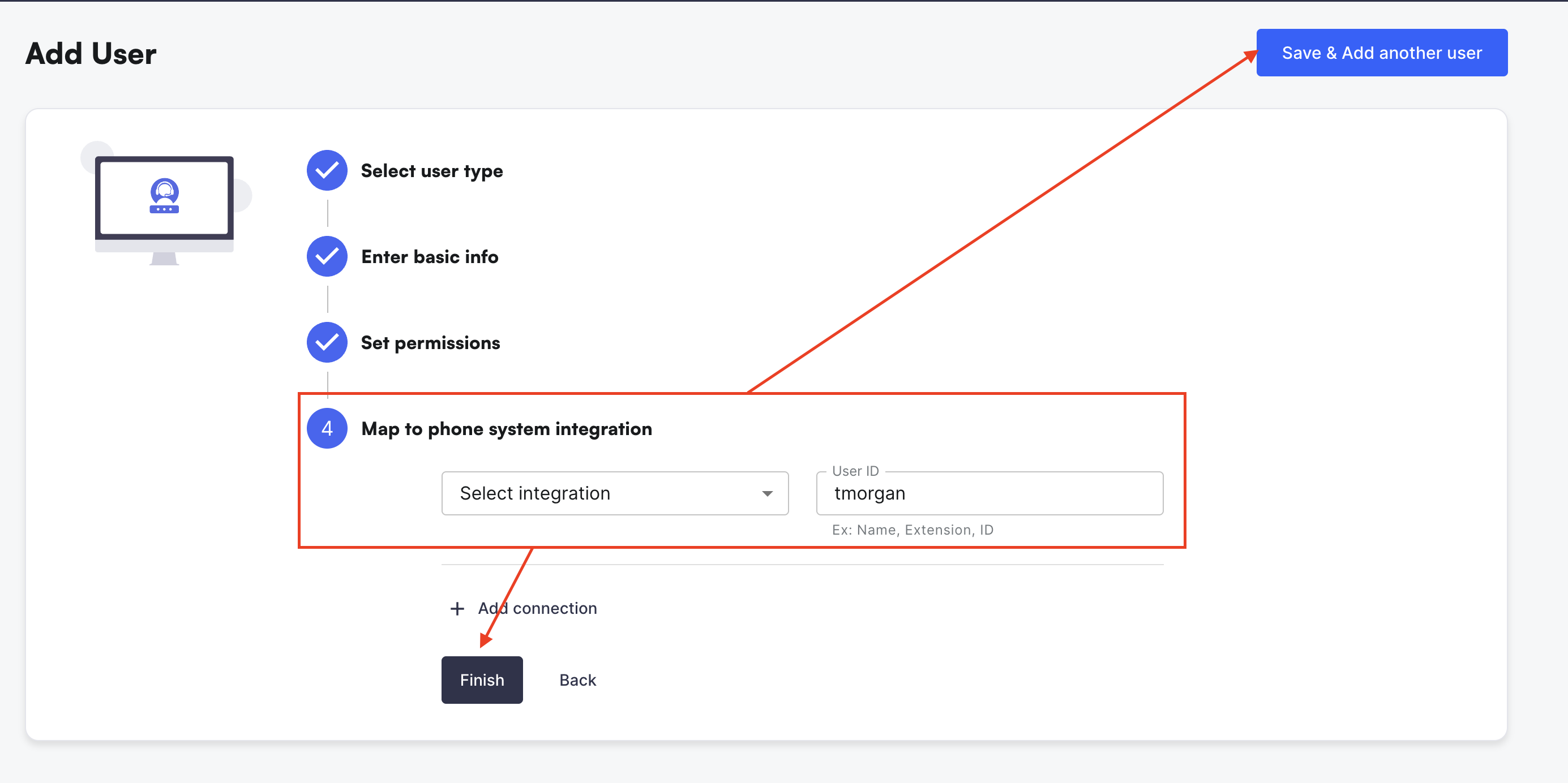
Select Save & Add another user or Finish to complete the user add
How to remove users
Click the initials icon in the top right corner of the Lace portal.
Select Users from the drop down menu.
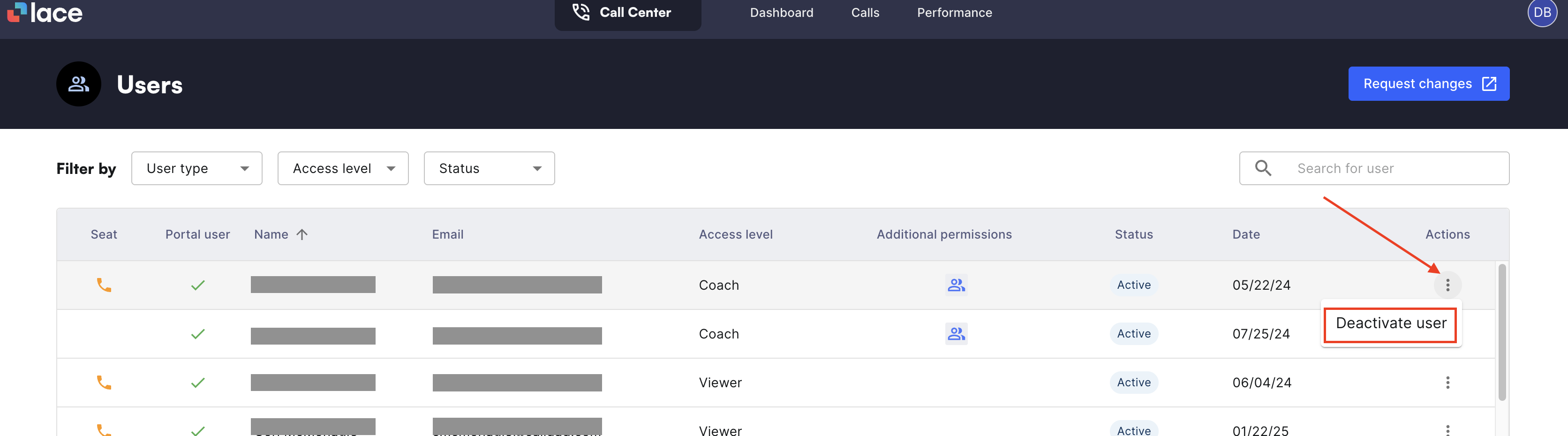
Locate the user you want to remove
Click the three dots (. . .) on the far right of the row.
Select Deactivate to revoke access.
💭 Questions?
If you need help managing users or aren't sure who should have user management access, reach out to our Support team here for guidance.