Understanding the Calls Tab
Last updated: March 16, 2026
Why use the Calls tab?
The Calls tab is where you drill into individual conversations to understand what actually happened during a customer interaction and why a call did or didn’t result in a booking.
Overview
The Calls tab is where you explore individual conversations.
Here you can:
Review analyzed calls in detail
Filter conversations by outcome or category
Identify missed opportunities
Understand customer objections
Review coaching insights
This is often the most frequently used part of Lace because it allows teams to learn directly from real customer interactions.
The Calls Table
The main view in the Calls tab is the calls table, which displays analyzed calls and key information about each conversation.
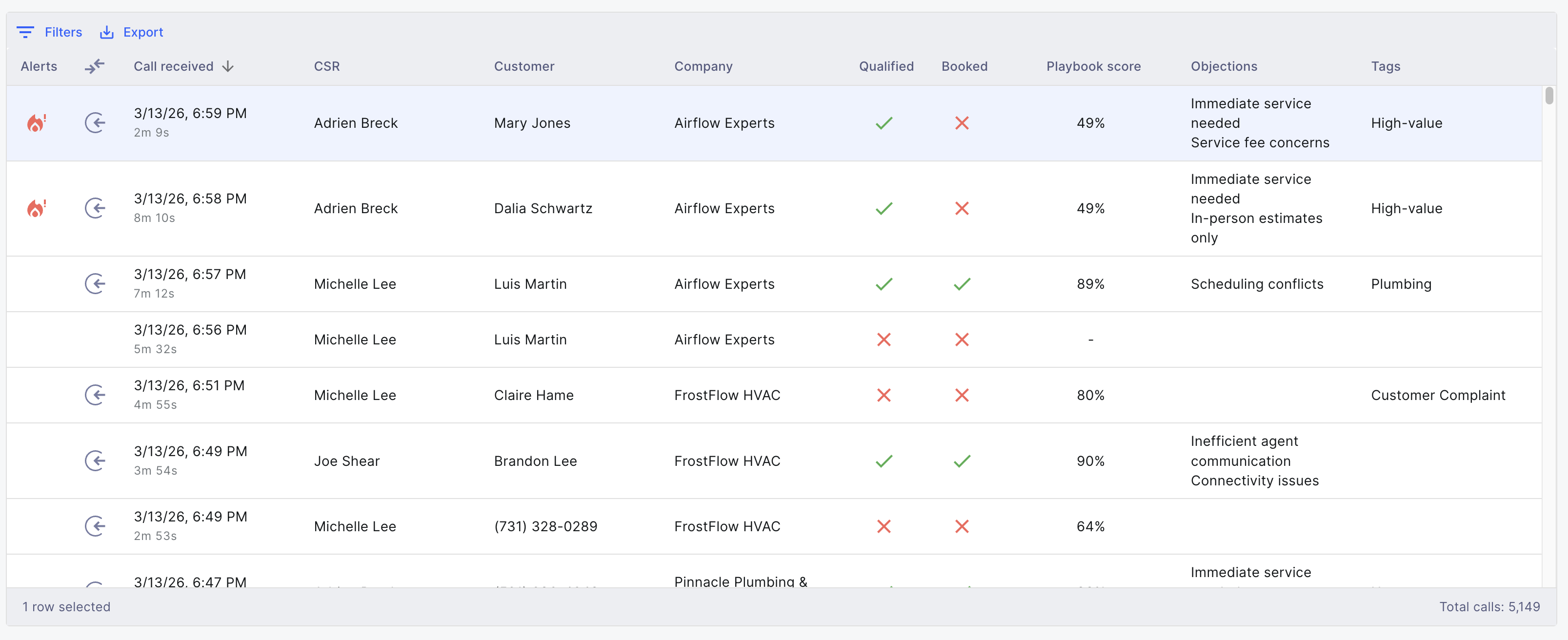
Each row represents a single call and includes details such as:
Call time and duration
CSR handling the call
Customer information
Company or location
Whether the call was qualified
Whether the call resulted in a booking
Playbook score
Customer objections
Tags such as high-value opportunities
This table allows teams to quickly scan and compare conversations across many calls.
Filtering and Finding Calls
Because Lace analyzes a large number of calls, filters help you quickly focus on the conversations that matter most.
Quick Filters
At the top of the page you’ll see Quick Filters, which allow you to instantly view common categories of calls such as:

All calls
Qualified unbooked
Qualified booked
Customer emergency
High value
Maintenance program
Cancellation
These filters make it easy to quickly identify calls related to specific customer situations.
Column Filters
You can also filter directly within the table using the column filters.
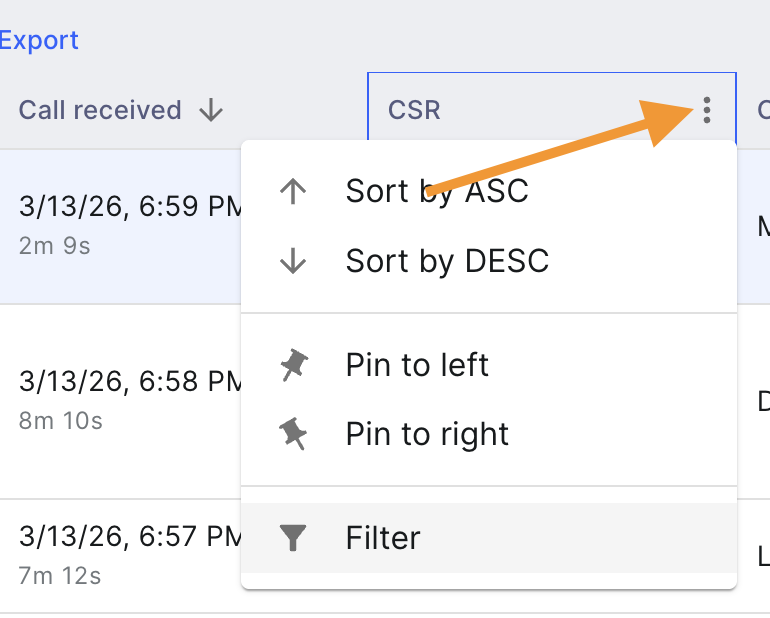
For example, you can filter by:
CSR
Call outcome
Qualification
Playbook score
Objections
Tags
This allows you to narrow down results and find very specific types of calls.
For example, you might filter for:
Qualified calls that were not booked
Calls with a specific objection
Calls handled by a specific CSR
Advanced Filters
The Filters panel allows you to build more detailed queries using multiple conditions.
This can help teams investigate patterns, compare performance, or isolate specific call scenarios.
Reviewing a Call
When you select a call from the table, Lace opens the Call Details panel.
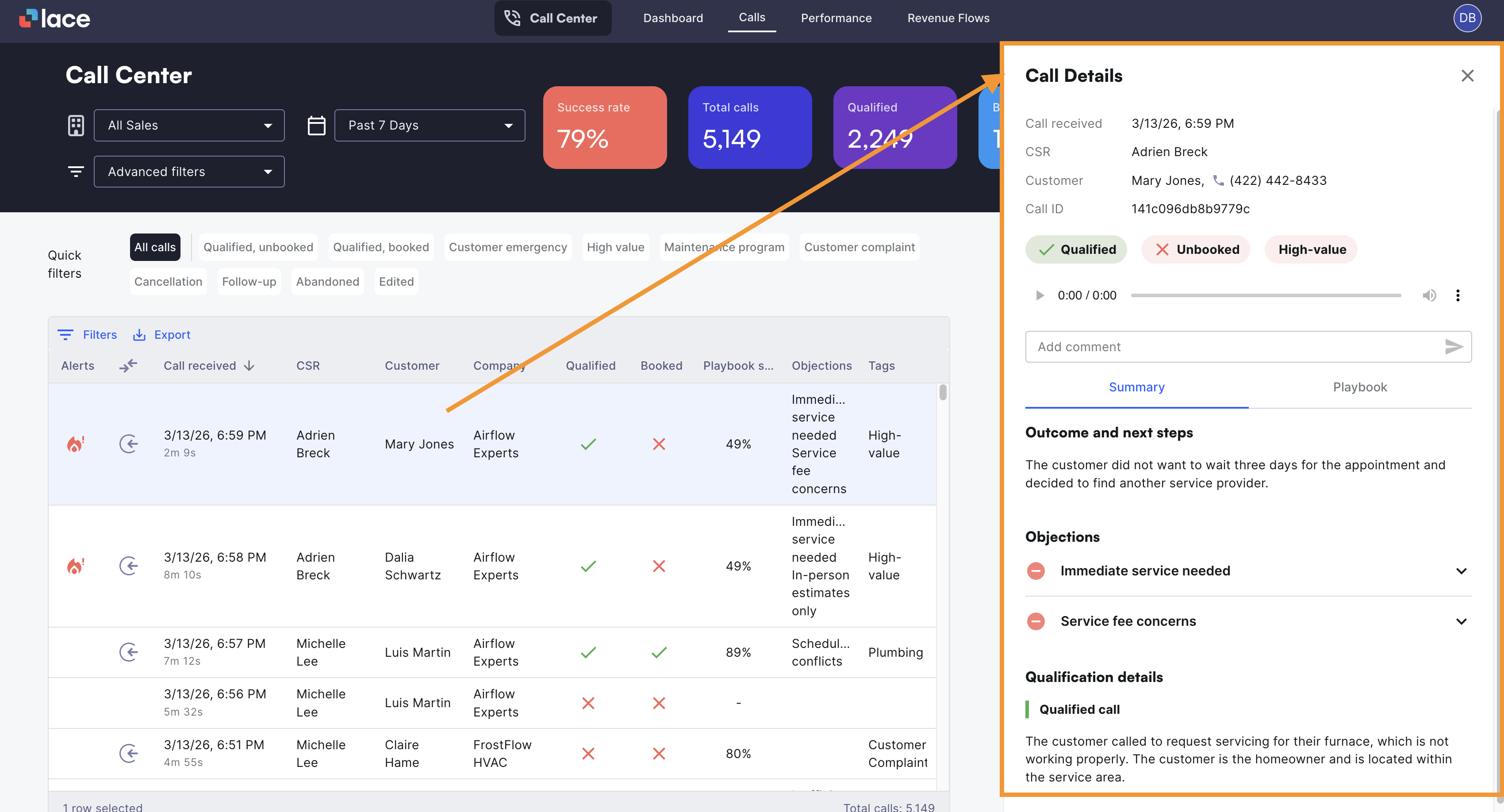
This panel provides a full breakdown of the conversation, including:
Call recordings
Conversation summaries
Customer objections
Qualification details
Coaching insights
Because the Call Details view contains a large amount of information, it is covered in its own guide.